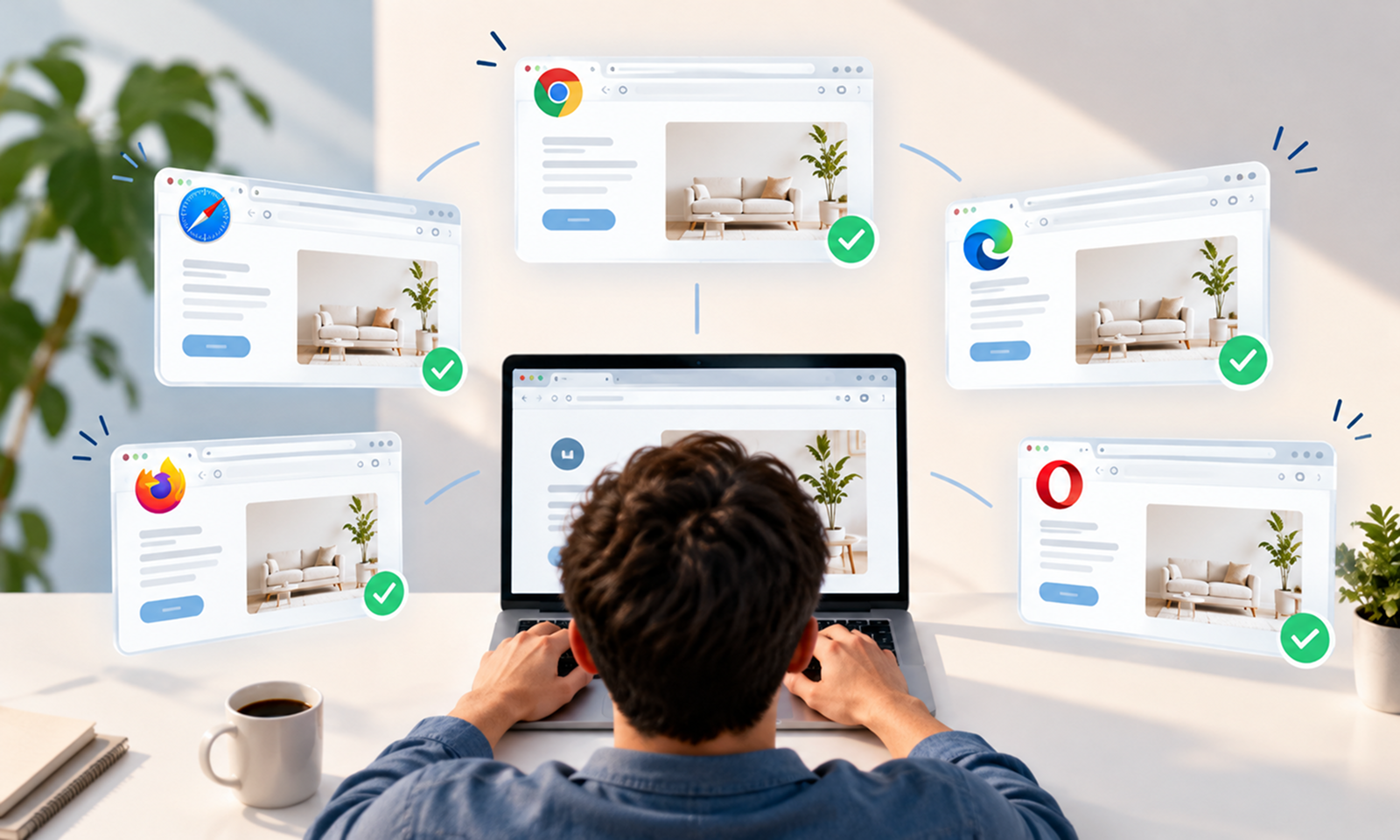
A release passes QA in Chrome. The account dashboard loads correctly, checkout works, forms submit and every automated test is green.
A few hours after deployment, support tickets begin arriving from iPhone users.
Nothing is wrong with the API. The release itself is healthy on the machines the development team used. The problem is a browser-specific behavior in one part of the frontend that was never exercised in Safari. One important customer journey effectively had two release outcomes: successful for the browser the team tested, broken for one it did not.
That is the problem browser compatibility testing is designed to prevent.
Browser compatibility testing is the process of verifying that a web application provides an acceptable experience across the browsers, browser versions, operating systems and device conditions its users actually rely on.
MDN describes cross-browser testing in similar terms: ensuring a site works across different browsers and devices, including environments that may not support exactly the same CSS, JavaScript and Web APIs.
The goal, however, should not be interpreted as making every pixel identical in every browser ever released. For most applications, that would be wasteful or impossible.
The real goal is to define where the application promises to work, what “working” means in those environments, and how that compatibility will continue to be verified as both the application and browsers change.
For Levelworks, this is primarily a Compatible App Health concern. Tested and Observable support it because compatibility needs to be verified before release and monitored afterward rather than assumed from one development environment.
Modern browsers implement common web standards, but that does not make them interchangeable.
A web application depends on a large surface of browser behavior:
A feature may be available in one browser before another. Different browser engines can contain different implementation bugs. Mobile browser behavior can also depend heavily on the underlying operating system.
MDN's browser-compatibility guidance specifically highlights differences in support for HTML, CSS and JavaScript features as one of the main reasons cross-browser testing remains necessary.
This means “it works in my browser” proves only one configuration.
Compatibility needs a broader definition.
Trying to test every historical combination of browser, operating system, screen size and device quickly becomes unmanageable.
Instead, create an explicit browser support policy.
Use evidence such as:
A business application whose customers use managed Windows laptops may need a different matrix from a consumer ecommerce site with substantial mobile Safari traffic.
A useful support structure might look like this:
Support tier
Example approach
Primary
Browsers and devices representing critical or substantial real usage
Secondary
Meaningful but lower-volume environments
Best effort
Older or uncommon environments without a full compatibility guarantee
Unsupported
Versions too old, insecure or impractical to maintain
This turns browser compatibility from an undefined promise to “work everywhere” into something engineering can actually test.
Support policies should also be reviewed periodically. User populations change, browser versions age and business requirements move.
Cross-browser testing is easier when compatibility is considered during implementation rather than discovered at the end.
The web platform's Baseline initiative helps developers determine whether web features are available across major browsers. Features can be classified as Limited availability, Newly available or Widely available. MDN notes that Baseline considers Safari on macOS and iOS, Chrome on desktop and Android, Edge desktop, and Firefox on desktop and Android.
MDN: Baseline browser compatibility
web.dev explains that a feature becomes Baseline Newly available once it is interoperable across the core browser set, while Widely available indicates that sufficient time has passed since that interoperability milestone for broader adoption.
This is useful during design and development because it changes the question from:
“Does Chrome support this?”
to:
“Does our supported browser population support this, and what happens where it does not?”
Baseline is still only an input. MDN explicitly notes that it does not replace testing for older versions, WebViews, assistive technologies or browsers outside the Baseline definition.
Not every piece of a web application carries the same compatibility risk.
A paragraph of ordinary HTML is unlikely to require extensive browser-specific verification. A new browser API or complex responsive interaction deserves much more attention.
Browser differences can show up in newer CSS features, viewport calculations, form styling, font rendering or complicated layout combinations.
Test layouts where failure would materially affect usability:
Do not make “identical screenshot” the universal success criterion. Small rendering differences can be harmless. A checkout button becoming inaccessible is not.
Newer JavaScript or browser APIs may not exist in all supported environments.
Examples include APIs involving:
A missing optional enhancement should ideally result in a reduced experience rather than a broken page.
Browsers provide significant native behavior around inputs, validation, autofill, keyboards and focus.
This deserves particular attention for workflows such as:
Mobile browsers matter here because virtual keyboards, touch input and viewport changes can reveal problems that desktop testing will never expose.
A tempting compatibility fix is:
If browser is Safari, do X. If browser is Chrome, do Y.
That tends to become brittle.
MDN specifically discourages relying on user-agent sniffing when the real question is whether the browser supports a capability. Instead, it recommends feature detection: check whether the required API or behavior exists, then provide the appropriate implementation.
For JavaScript, that might mean checking for an API before calling it:
if ("geolocation" in navigator) {
// Use geolocation
} else {
// Provide an alternative
}
CSS provides similar mechanisms. The @supports rule can conditionally apply styles depending on whether the browser understands a particular feature.
@supports (grid-template-columns: subgrid) {
/* enhanced layout */
}
Feature detection does not eliminate testing. MDN points out that @supports can tell you whether a browser claims to understand a CSS declaration, but it cannot prove that a feature is completely bug-free or fully implemented.
Its value is architectural: applications become less dependent on identifying specific browser brands and more capable of adapting to the capabilities available.
A weak compatibility checklist looks like this:
Homepage opens in Chrome: ✓
Homepage opens in Firefox: ✓
Homepage opens in Safari: ✓
That proves very little about whether the application works.
A better matrix combines important user journeys with supported browser environments.
For example:
Journey
Chrome
Firefox
Safari
Mobile Safari
Mobile Chrome
Sign in
✓
✓
✓
✓
✓
Search
✓
✓
✓
✓
✓
Checkout
✓
✓
✓
✓
✓
File upload
✓
✓
✓
✓
✓
Account settings
✓
✓
✓
✓
✓
The exact browsers should come from your support policy rather than this example.
More importantly, the rows should represent business-critical behavior.
If customers cannot complete payment in one supported browser, the fact that 40 secondary screens render correctly does not compensate for it.
This risk-based approach keeps compatibility testing manageable while giving the most important workflows broad coverage.
[Internal Link: “Regression Testing: How to Update an App Without Breaking Existing Features”]
Manual testing alone becomes expensive once an application has many workflows and frequent releases.
Cross-browser automation allows the same functional test to run repeatedly against different browser environments.
The W3C's WebDriver standard was created specifically to provide a browser-neutral mechanism for remotely controlling browsers, and it underpins cross-browser automation used by tools such as Selenium.
Modern tools provide additional options. Playwright, for example, can execute test projects against Chromium, Firefox and WebKit, as well as configured Google Chrome and Microsoft Edge channels and emulated mobile-device profiles.
Playwright browser testing documentation
This makes it practical to place selected cross-browser tests into CI rather than waiting for a manual compatibility pass before every release.
Do not automate every possible test in every browser, however.
A useful model is:
Every commit: fast tests in the primary development browser.
Pull request or CI: critical journeys across major supported engines.
Pre-release: broader browser/device coverage for high-risk functionality.
This keeps feedback reasonably fast without sacrificing compatibility where it matters.
[Internal Link: “CI/CD for App Maintenance: How Automated Releases Reduce Risk”]
Testing Chromium, Firefox and WebKit gives valuable coverage of different browser engines.
It is not automatically equivalent to every real device/browser combination your customers use.
Playwright's own documentation makes an important distinction: its WebKit build is based on recent WebKit sources but is not the branded Safari browser. It also notes that some platform-dependent behavior, such as media codecs, can differ across operating systems.
Similarly, mobile emulation is useful for testing viewport dimensions, user-agent characteristics and many interaction patterns, but it does not reproduce every property of a physical phone.
Real-device or real-browser testing becomes particularly valuable when functionality depends heavily on:
Use emulation for broad, repeatable coverage and actual environments for the areas where platform behavior matters.
Testing only the latest Chrome, Firefox and Safari versions misses one of the main reasons compatibility testing exists.
If your stated support policy includes older browser releases, those versions need deliberate coverage.
This becomes especially important when developers introduce:
An application's transpilation, polyfills and build configuration can determine whether seemingly modern frontend code remains compatible with older target environments.
Whenever browser support requirements change, build configuration should be reviewed alongside the test matrix.
[Internal Link: “Why Dependency Updates Are Essential to App Maintenance”]
Your application's code is not the only thing that changes.
Browsers update independently.
A release that worked yesterday can encounter a new browser regression, stricter interpretation of a standard or altered platform behavior tomorrow.
This is one reason browser compatibility should be part of ongoing maintenance rather than a project performed once before launch.
Playwright specifically recommends keeping its browser-testing tooling current so applications can be exercised against newer browser builds and potential failures can be detected before those releases reach users.
For applications where browser compatibility is business-critical, consider periodically testing against upcoming browser channels as well as current stable versions.
That does not mean blocking every release on experimental browser builds.
It gives engineering earlier warning when a browser change is likely to affect production users.
Pre-release testing can cover the environments you expect.
Production monitoring tells you what users actually have.
Segment frontend failures where possible by:
Imagine the overall JavaScript error rate looks normal, but Safari users on one OS version have a dramatically higher error rate after deployment.
Without browser-level segmentation, that compatibility problem can disappear inside the aggregate.
The same applies to business metrics. If checkout completion falls for one browser while remaining stable everywhere else, the browser dimension may reveal the problem much faster than infrastructure monitoring.
This is where Observable App Health strengthens Compatible App Health: production evidence helps determine whether the supported environments are genuinely receiving the experience your test matrix promised.
When a defect appears only in one browser, avoid immediately filling the codebase with browser-specific conditions.
First reduce the problem.
Determine:
Browser developer tools, compatibility references and minimal reproductions usually make the underlying difference easier to identify.
If the root problem is missing feature support, progressive enhancement or a fallback may be appropriate.
If it is a browser defect, the application may need a narrowly scoped workaround until the affected browser version is no longer relevant.
The important part is understanding the cause before turning one compatibility bug into permanent browser-specific complexity.
For a maintained web application, compatibility testing can follow a relatively simple cycle:
This is considerably more sustainable than periodically trying to “test the whole application in every browser.”
No serious web team can guarantee identical behavior across every browser version, operating system and device that has ever existed.
A better compatibility promise is explicit.
The application has a defined browser-support range. Critical workflows are tested across that range. New web features are introduced with their support level understood, while appropriate fallbacks are used where necessary. Automated tests catch common regressions, and real-browser testing covers areas where emulation cannot reproduce the actual platform accurately.
For Levelworks, that is what Compatible App Health looks like in practice.
Browser compatibility is not a final checkbox added after development. Browsers continue changing, applications continue changing, and the boundary between them needs to be tested continuously enough that customers are not the first people to discover when they stop agreeing.
The useful question is therefore not:
“Does the website work in Chrome?”
It is:
“For every browser environment we promise to support, can users still complete the journeys that matter?”